
No. Lucky Hills runs as a PWA accessed through your mobile browser. You install it from the official website, not from the App Store or Google Play.
 Welcome bonusUp to 2 000 AUD + 100 FS
 Welcome bonusUp to 2 000 AUD + 100 FS
Lucky Hills Mobile Casino: PWA Access, Installation and Setup
Lucky Hills is an Australian-facing online casino. We run entirely through a Progressive Web App — no app store download is involved. Open the site in your mobile browser and follow a short install prompt. The PWA then sits on your home screen. This page covers which devices work, how a PWA differs from an APK, how to install on Android and iOS, and what to do when something goes wrong.
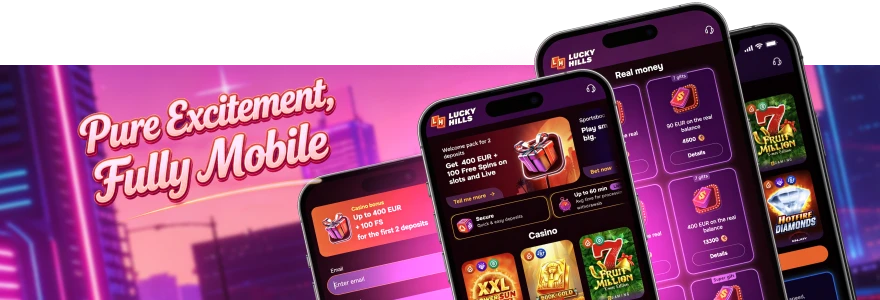
Lucky Hills Mobile
Lucky Hills mobile runs as a PWA. That means the casino runs inside your browser rather than as a separately installed application. Your access route is the official website. No third-party download link, no APK file and no app store listing is involved.
Chrome handles the install prompt on Android when you visit the site. Safari is the correct browser on iOS for adding the PWA to your home screen. Both paths produce a home-screen icon that launches the casino without a visible browser toolbar.
Because the PWA loads from our website, your account, balance and bonus history are always current. You log in once per session, the same way you would on a desktop browser. For a full walkthrough of the sign-in process, the lucky hills online casino login page has everything you need.
Supported Mobile Devices
Lucky Hills supports Android and iOS. Below are the practical points for each platform.
- Android — Use Chrome. The install prompt appears in the browser menu after you visit the site.
- iOS — Use Safari. Other iOS browsers do not expose the Add to Home Screen option in the same way.
- Android tablets — Follow the same Chrome-based route as on an Android phone.
- iPad — Follow the same Safari-based route as on an iPhone.
- Older devices — We do not publish a minimum OS version. Use the most current browser your device supports for the best result. Visit luckyhills directly from your mobile browser to begin.
App Format: PWA vs APK
Many players search for a Lucky Hills APK download. We do not distribute an APK file. Our format is a PWA, accessed through the official website. Here is how that works in practice.
- Visit the official site in your mobile browser. No file download occurs at any point.
- Accept the install prompt. Your browser packages the site as a home-screen shortcut with an app-like launch experience.
- Open the PWA from your home screen. It launches without a browser address bar.
- Avoid third-party APK sources. Files from unofficial sites are not affiliated with us and carry their own risks.
- Create an account if you are new. The luckyhills casino registration page walks through account creation, which you can complete inside the PWA.
Because no APK is involved, you do not need to enable “Install from unknown sources” in your Android settings. Installation happens through normal browser behaviour.
Installing the Lucky Hills Mobile Casino
Installation Steps by Platform
The steps below cover the install sequences for Android and iOS.
Android (Chrome):
- Open Chrome and go to the Lucky Hills website.
- Tap the three-dot menu in the top-right corner.
- Select Install App from the menu.
- Tap Confirm when the install dialogue appears.
- The PWA icon appears on your home screen and is ready to launch.
iOS (Safari):
- Open Safari and go to the Lucky Hills website.
- Tap the Share button at the bottom of the screen.
- Select Add to Home Screen from the share sheet.
- Confirm the name and tap Add.
Both processes take under a minute. On Android, you get a native-style install dialogue. On iOS, you work through the Share sheet because Apple does not expose a direct install button in Safari.
Permissions and Authorisation
The PWA requests a small set of permissions during and after installation.
- One-time authorisation — On first launch, you authorise the PWA. This links the session to your account without requiring repeated browser sign-ins.
- Push notification permission — The PWA may ask whether to send notifications. Accepting lets us deliver bonus alerts directly to your lock screen.
- Declining notifications — You can still access every game and cashier feature if you decline. Notifications affect only whether you receive bonus alerts outside the app.
- No additional device permissions — PWAs do not request access to your camera, contacts or storage. Those permissions apply to native apps, not browser-based installs.
Security and Account Verification
Mobile account safety follows the same principles as desktop, with a few mobile-specific points worth noting.
- Identity verification — Complete KYC through Profile → Verification tab. Accepted documents include an ID card, passport, residence permit or driver’s licence. A live selfie with head rotation is also required.
- Document requirements — Your document must be valid for at least one month. Upload both sides if the document has two sides. Photos must be sharp and show all information clearly; we reject blurry uploads, which delays your account verification.
- Official access only — Always open the PWA from the icon you installed from our official site. Avoid links in unsolicited messages.
- Licence — We hold a Curaçao licence, number OGL/2024/923/0383. This is the regulatory framework covering your account activity.
- Support access — Live chat runs 24/7. VIP members receive priority 24/7 personalised care. Both channels are reachable from inside the PWA.
PWA Updates
A PWA updates differently from a native app because no app store is involved.
- Automatic refresh — When we push an update to the site, your PWA picks it up the next time you open it with an active connection.
- Force a refresh — If the PWA appears outdated, close it fully and reopen it. A fresh load pulls the current version.
- Reinstall when needed — If a refresh does not resolve a display issue, remove the PWA icon from your home screen. Then repeat the install steps. Your account data is stored on our servers and is not affected.
- No manual update required — You do not visit an app store or download a new file. We handle updates through the browser automatically.
Troubleshooting Casino LuckyHills Mobile Access
If the PWA fails to install or the site does not load correctly, work through these checks before contacting support.
- Check your browser. Use Chrome on Android and Safari on iOS. Other browsers may not surface the install prompt correctly.
- Check your connection. Switch between Wi-Fi and mobile data to rule out a network issue on one path.
- Clear the browser cache. A cached page can block the install prompt from appearing. Go to your browser settings, clear the cache, then revisit the site.
- Remove and reinstall the PWA. Delete the home-screen icon. Return to the official site in your browser and repeat the install steps from the beginning.
- Contact live chat. Our live chat team is available 24/7. Share your device model, operating system version and browser so the team can assist efficiently. VIP members can reach priority support through the dedicated 24/7 personalised care channel.
Frequently Asked Questions
Is Lucky Hills available on the App Store or Google Play?
Do I need to download an APK file to play on Android?
We do not offer an APK download. Install the PWA through Chrome using the Install App option in the browser menu — no file download is required.
Will the PWA work on my iPad or Android tablet?
Yes. Both Android tablets and iPads use the same browser-based install route as phones. Use Chrome on Android tablets and Safari on iPad.
Do I lose my account data if I delete and reinstall the PWA?
No. Your account, balance and history are stored on our servers. Removing the home-screen icon and reinstalling does not affect your account in any way.
Can I receive bonus alerts on my mobile device?
Yes. When you install the PWA, it may request notification permission. Accepting that permission lets us send push notifications for bonus alerts directly to your device.
What should I do if the install prompt does not appear on my Android device?
Make sure you are using Chrome and visiting the official Lucky Hills site. Go to Chrome settings, clear the cache, reload the page, then check the three-dot menu again. If the prompt still does not appear, contact our 24/7 live chat team with your device model and browser version.
Thank you! Your review has been successfully published
Write review
First deposit bonus
100% bonus + 100 Free Spins

- Max bonus:200 AUD
- Min deposit:20 AUD
- Wager:x40
- Win limit :2 000 AUD
- 100 FS:20 FS daily for 5 days
User reviews